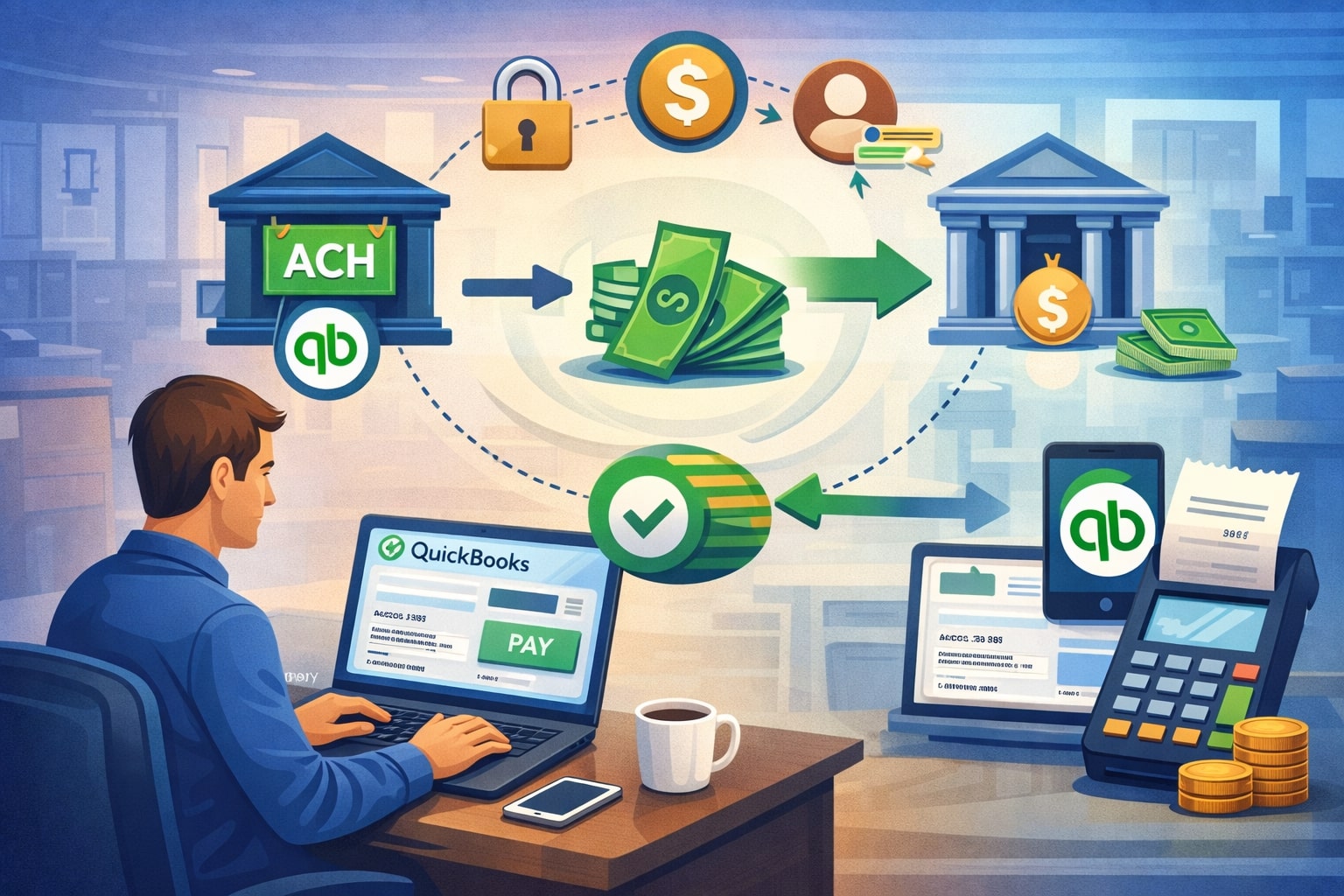
Processing ACH payments through QuickBooks is one of the easiest ways to collect low-cost, bank-to-bank payments while keeping your bookkeeping clean.
When it’s set up correctly, you can send invoices your customers can pay by bank transfer, take ACH for recurring charges, and record deposits automatically—without chasing paper checks or manually matching payments to invoices.
This guide walks you through how to process ACH payments through QuickBooks in a practical, end-to-end way: setup, customer authorization, invoicing, recurring payments, deposit timing, fees, troubleshooting, and best practices to improve approvals and reduce returns.
It also includes newer options like the customer-paid ACH convenience fee workflow and what to expect next as bank payments continue shifting toward faster settlement.
What ACH payments are and why businesses use ACH in QuickBooks

ACH is a bank transfer method that moves money electronically from one bank account to another through the Automated Clearing House network. In day-to-day operations, ACH is often used for invoice payments, subscription billing, membership dues, rent, professional services retainers, and vendor payments.
When you process ACH payments through QuickBooks, you’re essentially offering customers a “pay from bank” option that can reduce card processing costs and simplify reconciliation.
Businesses like ACH because it’s familiar to customers who prefer not to pay by card, and it’s typically cost-effective for larger invoices. It’s also a good fit for repeat billing because bank details can be saved (with proper authorization) and used again for scheduled charges.
If you handle many invoices per month, ACH payments through QuickBooks can be a meaningful lever to lower payment acceptance costs—especially when your average ticket size is high.
From an accounting standpoint, ACH can be cleaner than checks: fewer trips to the bank, fewer delays from mail, and fewer “I sent it last week” conversations.
When properly configured, QuickBooks can automatically link the customer’s payment to the invoice and reflect deposits in your bank feed, which reduces manual data entry and improves month-end close speed.
Which QuickBooks products support ACH payments and how the workflows differ
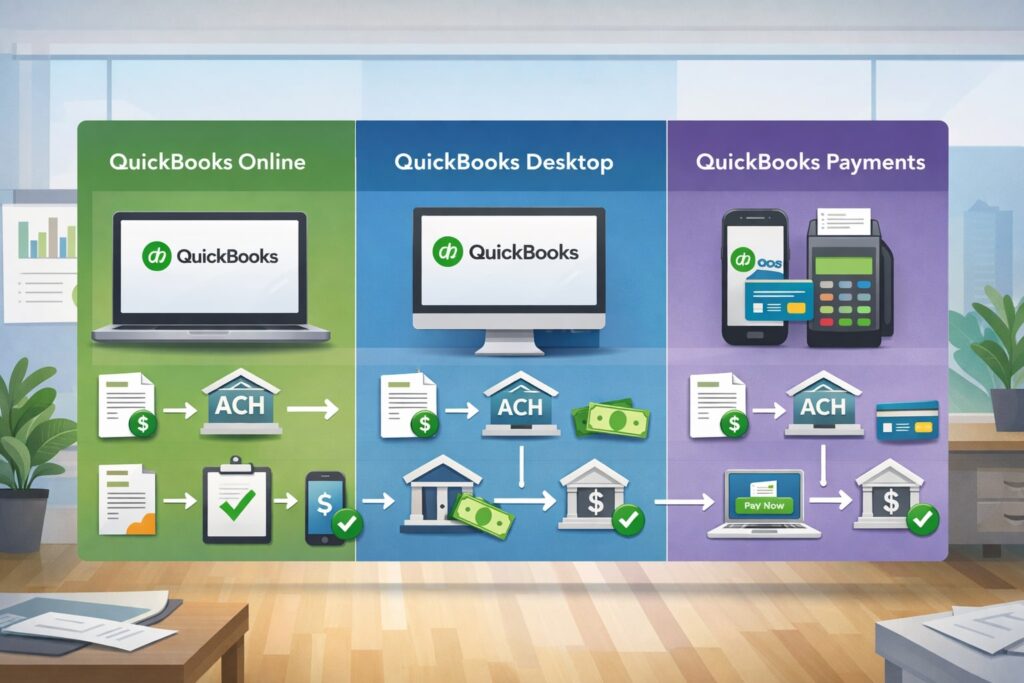
Most businesses that want to process ACH payments through QuickBooks are using QuickBooks Online with QuickBooks Payments enabled.
That combination is designed for customer-facing ACH acceptance—meaning customers can pay invoices electronically, and you can also enter bank transfer details with customer permission right inside QuickBooks.
The exact workflow you’ll use depends on whether you collect ACH in one of these common ways:
- Invoice paid online by the customer (the customer receives your invoice link and chooses “bank” / ACH during checkout).
- ACH entered by you with authorization (you have customer permission and enter their bank details on a transaction form). QuickBooks support explicitly notes you should obtain authorization before saving bank info, and highlights that manually entered ACH can face additional security checks/delays.
- Recurring sales receipts (saved bank info is charged automatically on the next scheduled run).
- A special “customer pays the fee” ACH convenience fee invoice experience (used when all other online payment methods are turned off).
If you’re using QuickBooks Desktop, ACH acceptance can be more dependent on your payments setup and services connected to that Desktop edition. Many Desktop users choose to take ACH via invoice links, payment processors, or integrated apps, then sync records into Desktop.
In practice, QuickBooks Online tends to offer the most streamlined “invoice → bank payment → auto-record” experience for ACH payments through QuickBooks, especially for modern customer payment flows.
Prerequisites before you process ACH payments through QuickBooks
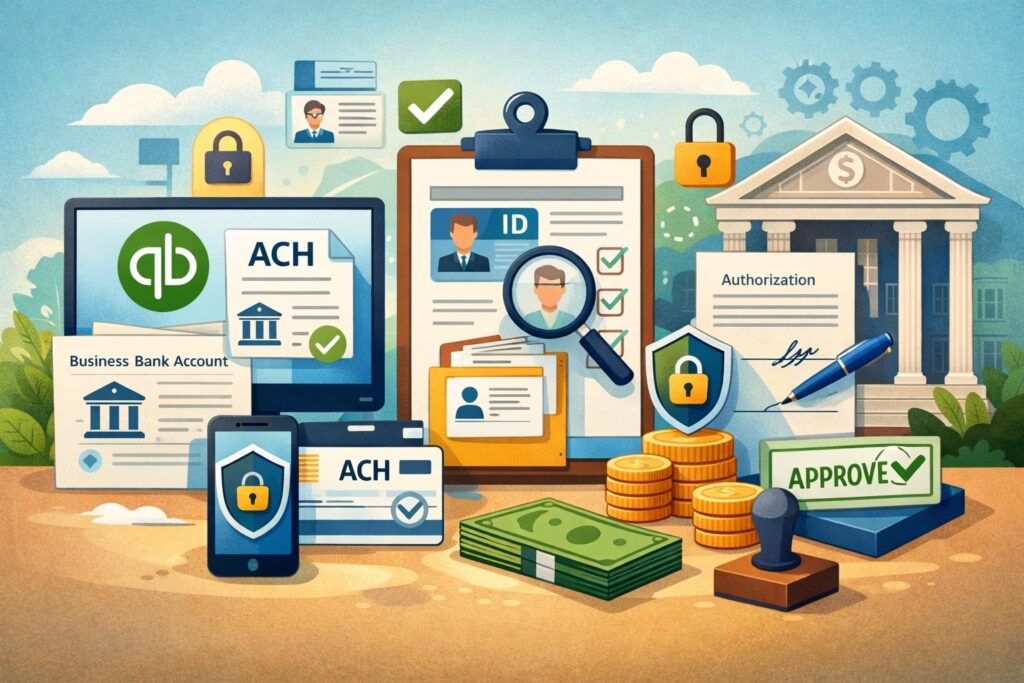
Before you process your first ACH transaction, make sure your foundation is solid. ACH is simple when configured properly, but messy when details are missing or your workflow is inconsistent.
You need a payments account enabled for bank payments
To process ACH payments through QuickBooks in a built-in way, you’ll typically need QuickBooks Payments enabled. QuickBooks’ own guidance for ACH convenience fee invoices also states you need a Payments account and references applying within a limited window of your first customer payment.
Your business info must match what banks expect
Expect your payments application to verify identity and business details. Use consistent legal name, address, and tax/business registration details. Mismatches can slow approvals and funding. This matters even more with ACH than cards because bank risk controls can be stricter, especially on first-time or high-dollar transfers.
Your QuickBooks company settings should be ready
Before you start collecting ACH payments through QuickBooks, confirm:
- You have the right deposit account selected for payments.
- Your invoice template includes clear payment instructions.
- Your Products/Services items and income accounts are mapped correctly, so ACH deposits reconcile cleanly.
You must have an authorization process
QuickBooks explicitly reminds users to obtain customer authorization before saving bank information. In practical terms, you should store an ACH authorization form and keep it accessible in case of disputes, returns, or bank verification. You don’t want your policy to be “we always ask by email”—because disputes are rarely friendly.
Step-by-step: enable ACH payments in QuickBooks Online the right way
If your goal is to process ACH payments through QuickBooks Online, you want to turn on bank payments for invoices so customers can pay you electronically.
Start with these high-impact setup steps:
1) Confirm your Payments settings and invoice payment options
In QuickBooks Online, go to your account settings for payments and invoice payments. This is where you control what your customer sees during invoice checkout (card, bank payment/ACH, digital wallets, and so on).
The specific labels in your interface can evolve, but the principle stays the same: turn on the payment methods you want customers to use, and keep your deposit account correct.
2) Set expectations with payment instructions
Even when the customer can pay with ACH directly from the invoice, add a short “Payment instructions” note. This reduces failed attempts and keeps your support inbox quieter. Examples:
- “Select Bank to pay by ACH. Bank payments typically take a few business days to clear.”
- “Use the exact invoice number as the reference.”
3) Decide whether you want customer-paid convenience fee ACH (optional)
QuickBooks describes a specific scenario: if you send an invoice with all online payment methods turned off, the customer can still pay online using an ACH bank transfer—but they pay an additional $25 convenience fee.
This option can be useful if you want to avoid paying a percentage-based processing fee yourself, but it can also surprise customers if you don’t communicate it clearly. Use it intentionally, not accidentally.
Step-by-step: process ACH payments through QuickBooks for invoices and sales receipts
Once your settings are in place, you’ll use one of the core transaction screens to process ACH payments through QuickBooks.
QuickBooks’ official workflow for receiving a bank transfer from a customer includes these steps (paraphrased into a clear checklist):
Step 1: Choose the transaction type and customer
QuickBooks notes you can add bank transfer payments to invoices or sales receipts by starting from + New, then selecting Receive Payment or Sales Receipt, choosing the customer, and selecting a payment method such as QuickBooks Payment – Bank (or a similar bank/ACH method in your dropdown).
Step 2: Enter bank info (with authorization)
QuickBooks indicates you can select Enter Bank info and enter account number, account type, routing number, and name—and reminds you to obtain authorization before saving payment info.
This is the moment where accuracy matters most. A single digit wrong in the routing/account number can cause returns, delays, and customer distrust. For repeat billing, only save bank info if your customer truly wants you to.
Step 3: Process the payment and send confirmation
QuickBooks’ steps include confirming you have authorization, reviewing the transaction, saving, and sending. Operationally, you should also:
- Send a payment receipt (or ensure QuickBooks sends it).
- Record the customer’s authorization reference (document ID, date signed, etc.).
- Track the payment status until it clears (especially for first-time ACH).
This is the core of how most businesses process ACH payments through QuickBooks: invoice/sales receipt → bank payment method → customer authorization → submit → deposit → reconcile.
How to process recurring ACH payments through QuickBooks for predictable cash flow
Recurring billing is where ACH payments through QuickBooks can become a serious advantage. If you run retainers, subscriptions, memberships, or installment plans, recurring sales receipts reduce admin time and improve collection consistency.
QuickBooks’ guidance notes that for a recurring sales receipt, the ACH payment processes on the next scheduled charge date, and you can set the payment method on the recurring transaction and enter bank info, with an option to use the account information in the future.
To implement recurring ACH the right way:
Build a recurring template that matches your contract
- Use the correct frequency (monthly, weekly, etc.).
- Use clear line-item descriptions that match the customer’s agreement.
- Include a short memo like “Monthly service retainer – December.”
Keep authorization aligned to the billing schedule
Your authorization should explicitly state:
- Amount or amount range (if variable)
- Timing (e.g., “on the 1st of each month”)
- Cancellation policy
- What happens if a payment returns
Reduce returns by using stable bank accounts
Customers sometimes try to pay from accounts with inconsistent balances or accounts that frequently change. Recurring ACH works best when customers use a stable business checking account rather than rotating personal accounts.
When recurring ACH is set up carefully, processing ACH payments through QuickBooks becomes a “set it and monitor it” system rather than a manual collections task.
Understanding fees, funding speed, and what you’ll actually pay for ACH payments through QuickBooks
Your cost to process ACH payments through QuickBooks depends on your pricing plan and the ACH option used, and it can change over time. The most reliable approach is to base your expectations on QuickBooks’ current published payment rates and confirm what your account shows at the time you enable the feature.
QuickBooks’ payment rates page lists ACH bank payments at 1%. That single line matters because it sets the baseline expectation: most businesses are paying a percentage fee for ACH acceptance in the standard invoice/online-payment flow.
However, QuickBooks also documents a different experience: if customers pay by ACH using the convenience-fee invoice option, the customer pays a flat $25 convenience fee, and QuickBooks notes invoice eligibility thresholds (for example, greater than $125 and less than $100,000) and that partial invoice payments aren’t supported in that scenario.
This is a very different customer experience than the standard bank-payment checkout, so it’s critical you know which mode you’re using.
Funding speed can vary based on risk controls, bank processing windows, and whether you’ve chosen accelerated deposit features.
QuickBooks also notes that ACH payments entered manually by the merchant can be delayed due to extra security checks, and suggests that collecting ACH payments from pay-enabled invoices can help reduce processing risks.
The practical takeaway: if you want smoother funding, fewer reviews, and fewer “pending” headaches, encourage customers to pay directly through the invoice link rather than having you manually type bank details.
How to reconcile ACH payments in QuickBooks without messy books
One reason people prefer to process ACH payments through QuickBooks is the promise of easier bookkeeping. You only get that benefit if you reconcile properly.
Here’s the clean reconciliation approach:
Use undeposited funds only when it matches reality
If QuickBooks is batching deposits (for example, multiple customer payments in one deposit), you may see a deposit that doesn’t match a single invoice amount. In that case, make sure your workflow uses undeposited funds correctly so your bank feed deposits match what QuickBooks expects.
Match deposits to payment records
When ACH clears, you’ll usually see:
- The payment marked as paid
- A deposit record
- A bank feed transaction you can match
Your job is to match, not duplicate. Duplicates happen when you “Add” a bank feed transaction instead of “Match,” creating extra income entries that inflate revenue and break your receivables aging.
Separate payment fees from revenue
If you pay a percentage fee for ACH, record it as processing fees (expense) rather than netting it against revenue manually. This gives you clearer reporting, cleaner tax categorization, and better margin visibility by payment type.
When reconciliation is dialed in, ACH payments through QuickBooks become one of the simplest payment streams to maintain.
Customer experience: how to make ACH payments through QuickBooks easy for customers
A big driver of success is whether customers actually choose the bank payment option. “ACH is cheaper” doesn’t matter if no one uses it.
To improve adoption:
Put ACH upfront on invoices
Use clear language in your invoice email:
- “Pay by bank transfer (ACH) using the invoice link.”
- “Avoid card fees by paying from your bank.”
Reduce friction at checkout
Customers abandon payment flows when they feel uncertain. Add a short FAQ snippet in your invoice message:
- “Bank payments are processed securely.”
- “You may need your routing and account number.”
Avoid surprising customers with fees
If you use the customer-paid convenience fee option, disclose it plainly before they click. QuickBooks states customers pay an additional $25 convenience fee in that mode. Even if the customer pays the fee (not you), surprise fees can reduce trust and increase support requests.
Offer a fallback method
Some customers prefer cards for points, float, or internal policy reasons. If your process forces ACH only, you may slow collections. A balanced approach is often best: ACH as the preferred option, cards as the backup.
The goal is to make processing ACH payments through QuickBooks feel effortless to the customer, not like a special request.
Security and compliance best practices for ACH payments through QuickBooks
ACH is convenient, but it’s still bank data. Treat it accordingly.
Always obtain and retain authorization
QuickBooks explicitly instructs that you should get customer authorization before saving bank info. Operationally, keep authorizations for as long as your dispute window and record retention policies require. In a dispute, your best friend is a signed document (or an e-sign record) showing the customer agreed to the debit.
Limit who can view or enter bank information
If multiple users access your QuickBooks company file, use role-based permissions. Only a small set of trusted staff should be able to enter or update bank details.
Use invoice-driven ACH when possible
QuickBooks notes that manually entered ACH may be delayed due to extra security checks, and that invoice-based collection can reduce processing risks. Invoice-driven ACH shifts sensitive data entry to the payer and reduces mistakes from manual keying.
Implement a “bank change” verification step
A common fraud pattern is a fake “please update my bank details” request. If you’re changing stored bank info for a customer, confirm through a second channel (phone call to a known number, not the email thread).
When you take security seriously, ACH payments through QuickBooks remain low-drama and low-risk.
Troubleshooting: common ACH payment problems in QuickBooks and how to fix them
Even well-run ACH programs hit occasional issues. What matters is having a repeatable playbook.
“Payment pending” or delayed deposits
If an ACH payment stays pending longer than expected, it can be due to verification checks, bank timing, or risk controls—especially for manually entered payments. QuickBooks explicitly warns that manually entered ACH may be delayed due to extra security checks. Your fastest fix is often prevention: encourage customers to pay via the invoice link.
Returned payments (R01, R03, etc.)
Returns happen for insufficient funds, invalid account numbers, closed accounts, or authorization disputes. When it happens:
- Notify the customer immediately with a professional, neutral message.
- Confirm bank info (without asking for sensitive details over insecure channels).
- Collect a replacement payment method (ACH retry rules vary by policy).
Customer can’t pay partially by ACH
If you are using the customer-paid convenience fee ACH invoice option, QuickBooks notes customers can’t pay partial invoices with an ACH transfer in that mode.
Solution: allow standard invoice payments (where you pay the processing fee) or accept partial payments by another method.
Customer sees unexpected ACH fee
If your customer reports a $25 fee, confirm whether you accidentally turned on the “Your customer pays the fee” convenience-fee behavior and whether other payment methods were disabled. QuickBooks describes how the setting works and how to turn it off. Fix it quickly, then resend the invoice with the intended payment options enabled.
A calm troubleshooting process is part of professional ACH payments through QuickBooks operations.
Optimization strategies to reduce costs and improve approval rates
If you want your ACH program to scale, you need more than “turn it on.”
Route customers to the lowest-friction flow
QuickBooks suggests invoice-based ACH can reduce processing risks compared to manual entry. So build your workflow around pay-enabled invoices whenever possible, and reserve manual entry for edge cases.
Use ACH for high-ticket invoices and cards for smaller ones (often)
For many businesses, the best economics are:
- ACH for large invoices
- Cards for convenience, speed, and customer preference on smaller invoices
This reduces processing fees while maintaining fast collections.
Tighten invoice wording to drive the right behavior
Add one sentence to your invoice email:
- “For bank transfer, select ‘Bank’ at checkout. It’s our preferred option.”
You’ll be surprised how much a single line increases ACH selection.
Monitor return rate and customer friction
Track:
- Return percentage
- Average time-to-pay
- Share of payments by ACH vs card
- Customer complaints about checkout
Optimizing processing ACH payments through QuickBooks is a continuous improvement loop, not a one-time setup.
The newer “customer pays the fee” ACH option: when it helps and when it hurts
QuickBooks documents a model where customers can pay by ACH even when you turn off all online payment methods—by paying a $25 convenience fee. This can be attractive if you want to avoid paying a percentage fee yourself, but it changes the psychology of your invoice.
When this option can make sense
- You’re in a B2B environment where customers expect to pay fees for certain payment methods.
- You’re dealing with larger invoices where customers value bank payment convenience more than the extra fee.
- You clearly disclose the fee before sending the invoice.
When it can damage collections
- Customers feel surprised or nickel-and-dimed.
- Your competitors don’t impose comparable fees.
- Your customers are price-sensitive or your invoices are smaller.
If you choose this model, communicate it upfront:
- “If you prefer to pay online by bank transfer, your bank payment provider charges a convenience fee.”
Used strategically, it can be part of a sustainable ACH payments through QuickBooks strategy. Used accidentally, it can create avoidable friction.
Future outlook: where ACH payments through QuickBooks are heading next
ACH is not standing still. While the underlying rails remain bank-based and batch-oriented in many cases, the broader “bank payments” ecosystem is evolving quickly—especially with faster bank payment networks, open banking verification, and increasing demand for real-time settlement.
Here’s what many businesses should expect over the next few years as they process ACH payments through QuickBooks:
More instant or near-instant bank payment options
Many accounting and payment platforms are moving toward faster settlement experiences. Even if ACH remains available, businesses will increasingly be offered a “faster bank pay” option that feels like ACH to the customer but settles quicker behind the scenes.
More bank verification and risk controls
As fraud tactics evolve, payment providers tend to increase verification requirements—especially for first-time payers, large transactions, or manually entered bank debits. QuickBooks already hints at this dynamic by noting that manually entered ACH can be delayed due to extra security checks.
Smarter payment prompts inside invoices
Expect more invoice checkout nudges like:
- “Bank payment recommended”
- “Lower cost option”
- “Faster confirmation with verified bank login”
Better automation inside accounting
The long-term trend is fewer manual steps: automated matching, automatic categorization, and more proactive alerts for failed/returned payments. Businesses that standardize their process now will benefit the most as automation expands.
The headline prediction: ACH payments through QuickBooks will likely become easier for customers and more automated for merchants—while behind the scenes, verification and risk checks become more sophisticated.
FAQs
Q 1: What is the fastest way to process ACH payments through QuickBooks?
The fastest way to process ACH payments through QuickBooks is usually to send a pay-enabled invoice and have the customer pay directly through the invoice link. This approach reduces manual entry, reduces data entry mistakes, and often lowers the chance of delays caused by verification checks.
QuickBooks explicitly notes that ACH payments entered manually by the merchant may be delayed due to extra security checks, and suggests that invoice-based collection can help reduce payment processing risks.
To make invoice-driven ACH fast in practice, focus on three things: (1) ensure bank payments are turned on in your invoice payment options, (2) write a one-line instruction telling customers to select “Bank” at checkout, and (3) resend invoices promptly if customers miss the payment link or try to pay via check by habit.
If you handle high invoice volume, consider building a standard invoice email template that always highlights bank payment as the preferred option.
If you must enter bank details yourself, speed comes from preparation: have your authorization form signed, verify routing/account numbers carefully, and keep your customer communication clear so they know when the debit will occur.
The “fastest” method is the one that reduces back-and-forth and prevents rework—invoice-driven bank payments typically win.
Q 2: How much does it cost to process ACH payments through QuickBooks?
Answer: Costs can vary by account and program, but QuickBooks’ published payment rates list ACH bank payments at 1%. That means if you process ACH payments through QuickBooks in the standard way (customers paying invoices by bank transfer), you should expect a percentage-based processing fee unless your account has different negotiated pricing.
There’s also a separate model QuickBooks documents where your customer pays a flat $25 convenience fee for paying by ACH when all other online payment methods are turned off on the invoice. In that convenience-fee model, the customer pays the fee (not you), which can reduce your processing cost exposure—while potentially adding friction for the payer.
Because pricing and caps can change over time, the safest operational approach is to (1) check your current Payments pricing screen, (2) run a small test invoice, and (3) confirm how fees appear in your deposit and reporting.
Once you know your true effective rate, you can decide when to steer customers toward ACH, when to accept cards, and how to reflect processing costs in your pricing.
Q 3: Do I need customer authorization to process ACH payments through QuickBooks?
Answer: Yes—if you are initiating a bank debit (especially by entering bank details yourself), you should obtain customer authorization. QuickBooks explicitly states you should get the customer’s authorization before you save their payment info.
Even when customers enter their bank information themselves through an invoice checkout, your policies should still reflect that the customer is authorizing a bank debit by completing payment.
A best-practice authorization package includes: the customer’s name, bank account type, last four digits (when appropriate), payment amount or amount range, timing/frequency (especially for recurring payments), cancellation terms, and a signature or e-sign record.
Store it in a secure system with access controls. If a customer later disputes the debit, your ability to produce a clear authorization record is often the difference between a quick resolution and a prolonged dispute.
If you offer recurring ACH, authorization becomes even more important. Customers should explicitly agree to the recurring nature of the payment and how changes are handled.
This is one of the most overlooked parts of processing ACH payments through QuickBooks, and tightening it will reduce risk and reduce future “I didn’t approve this” situations.
Q 4: Why is my ACH payment in QuickBooks pending or delayed?
Answer: Pending ACH payments typically occur due to verification checks, bank processing windows, or risk controls—especially when the payment is manually entered.
QuickBooks notes that ACH payments entered manually by the merchant may be delayed due to extra security checks, and that collecting ACH payments from pay-enabled invoices can help reduce payment processing risks.
To reduce delays, steer customers toward paying directly from the invoice link whenever possible. Also, avoid making unnecessary edits to transactions after submission, and make sure your customer’s bank details are accurate.
First-time payments, unusually large payments, and payments that don’t match typical behavior patterns are more likely to be reviewed.
Operationally, set expectations with customers: “Bank payments can take a few business days to clear.” That single sentence reduces support tickets and improves customer trust.
If delays persist, check whether you’re consistently using the same workflow, whether your deposit settings include accelerated options, and whether your account is subject to any processing holds or verification requirements.
Q 5: How do I let customers pay by ACH in QuickBooks without me paying the processing fee?
Answer: QuickBooks describes a specific method: when you send an invoice with all online payment methods turned off, your customer can still pay online using an ACH bank transfer—and they pay an additional $25 convenience fee. This is essentially a customer-paid fee model for ACH access.
QuickBooks also explains key constraints in that model: invoices must fall within certain thresholds (for example, greater than $125 and less than $100,000) and customers can’t pay partial invoices using that ACH transfer option.
So while it can reduce your direct processing fees, it may not fit every billing situation—especially if customers often pay in installments.
If you use this approach, disclosure is everything. Tell customers upfront that paying online by bank transfer includes a convenience fee, and offer an alternative payment method if needed. If you don’t want customers to see that fee option, QuickBooks provides steps to turn the setting off in your account and settings.
Q 6: What’s the best way to reduce ACH returns when processing ACH payments through QuickBooks?
Answer: Reducing returns is mostly about reducing errors and aligning expectations. Start with accuracy: validate routing/account numbers carefully and avoid manual entry when you can.
QuickBooks warns that manually entered ACH can be delayed due to extra security checks, and invoice-based ACH can reduce processing risks—invoice-based workflows also reduce typo risk because customers enter their own bank details.
Next, tighten your authorization and communication. Returns often happen when customers forget they agreed to a debit, when their account has insufficient funds, or when the bank account changes.
A simple reminder email (“Your monthly bank payment will process on the 1st”) reduces disputes and insufficient-funds scenarios. For recurring payments, consider confirming the payment date in the invoice memo or automated email.
Finally, create a return response policy: how many retries you allow, when you switch the customer to card or wire, what fees you charge for repeated returns, and how you handle service suspension if payments fail.
When you combine good workflow selection, clear authorization, and a consistent policy, processing ACH payments through QuickBooks becomes more predictable and far less time-consuming.
Conclusion
To successfully process ACH payments through QuickBooks, focus on three pillars: the right setup, the right collection method, and the right customer communication.
In most cases, the smoothest process is invoice-driven bank payments—customers pay from the invoice link, QuickBooks records the transaction, and you reconcile deposits cleanly. QuickBooks’ own guidance supports this direction by noting manual ACH entry can face extra security delays and that invoice-based ACH can reduce risk.
From there, decide how you want fees handled. The standard model is percentage-based pricing (QuickBooks publishes ACH bank payments at 1%). The alternative convenience-fee model can shift cost to the customer via a flat $25 fee, but it comes with constraints and customer-experience tradeoffs.
Leave a Reply