Recurring ACH payments in QuickBooks are one of the cleanest ways to automate cash flow without chasing checks or re-entering the same billing details every month.
Instead of manually sending invoices and manually recording deposits, you can build a system where customers receive scheduled bills (or you charge them on a fixed schedule), pay by bank transfer, and QuickBooks records the transaction with minimal effort.
The big win is predictability. When recurring ACH payments in QuickBooks are configured correctly, you can forecast revenue more accurately, reduce late payments, and cut down on admin time.
It’s also a customer-friendly option because bank transfers typically cost less than card payments, and many customers prefer paying straight from a checking account.
That said, “recurring ACH payments in QuickBooks” can mean a few different workflows depending on your QuickBooks product, how you bill customers, and whether you want the customer to approve each payment or you want automated “hands-off” collections.
QuickBooks Online recurring templates behave differently than QuickBooks Payments recurring billing tools, and QuickBooks Desktop may require alternate approaches.
In this guide, you’ll learn a practical, step-by-step process to set up recurring ACH payments in QuickBooks, stay compliant with authorization rules, reduce payment failures, and keep reconciliation clean—plus what’s changing in the near future for bank payments.
What “Recurring ACH Payments in QuickBooks” Really Means
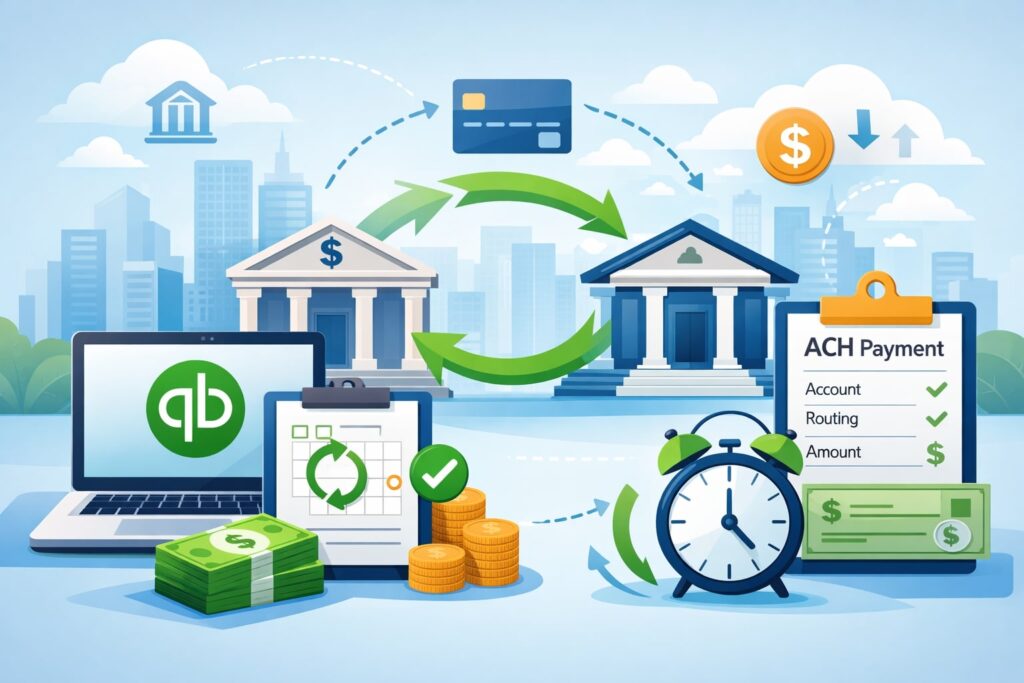
Before you click anything, it helps to define the exact outcome you want—because recurring ACH payments in QuickBooks can be set up in more than one way.
One meaning is recurring invoices: QuickBooks automatically creates and emails an invoice on a schedule (weekly, monthly, yearly). The customer then chooses ACH as the payment method and pays from their bank account.
This workflow is great when the amount changes sometimes or you need the customer to review charges each cycle. It’s also a low-risk approach because the customer actively approves the payment each time.
Another meaning is recurring charges (autopay): the customer authorizes you to charge their bank account on a schedule. This is closer to a subscription model and is ideal for fixed monthly services like memberships, retainers, or maintenance plans.
If you want true automation, recurring ACH payments in QuickBooks usually means this model—where payments happen even if the customer forgets.
There’s also a third scenario people confuse with recurring ACH payments in QuickBooks: recurring vendor payments (paying bills to suppliers). QuickBooks can automate bill creation, but recurring ACH to vendors often depends on bill pay features or an external bill pay solution.
This article focuses mainly on taking payments from customers, since that’s what most people mean when they ask about recurring ACH payments in QuickBooks.
Finally, be aware that fees and features can vary by account type and when you activate payments. Some QuickBooks users report a 1% ACH fee with a cap, while others may see different fee structures depending on account timing and plan rules.
Requirements Checklist for Recurring ACH Payments in QuickBooks
To set up recurring ACH payments in QuickBooks smoothly, you want to confirm a few items upfront. Skipping this checklist is the fastest way to end up with “ACH is not showing” issues, failed payments, or reconciliation mess.
First, you’ll need an active QuickBooks product that supports invoicing and recurring transactions (most QuickBooks Online subscriptions do). Second, you typically need QuickBooks Payments enabled to accept ACH bank transfers directly on invoices or sales receipts.
QuickBooks’ own support documentation describes processing ACH bank transfers inside QuickBooks once you have customer permission and the payment option available.
Next, confirm your bank deposit account is connected correctly inside QuickBooks so deposits land in the right place and matchable transactions appear in the Banking feed. This is critical for recurring ACH payments in QuickBooks because you’ll be receiving a steady stream of similar deposits—any mapping mistake will repeat over and over.
Also confirm you have the right internal controls: who can edit recurring templates, who can issue refunds, and who can change payment settings. Recurring systems reduce workload, but they also make it easy for a single incorrect change to affect many customers at once.
Finally, prepare the customer experience: update your invoice language, include autopay authorization wording (if applicable), and make sure your support team can answer basic questions like “Where do I pay?” and “Why did my payment fail?” With recurring ACH payments in QuickBooks, customer clarity is what keeps churn and disputes low.
Understanding ACH Authorization and Compliance for Recurring Payments
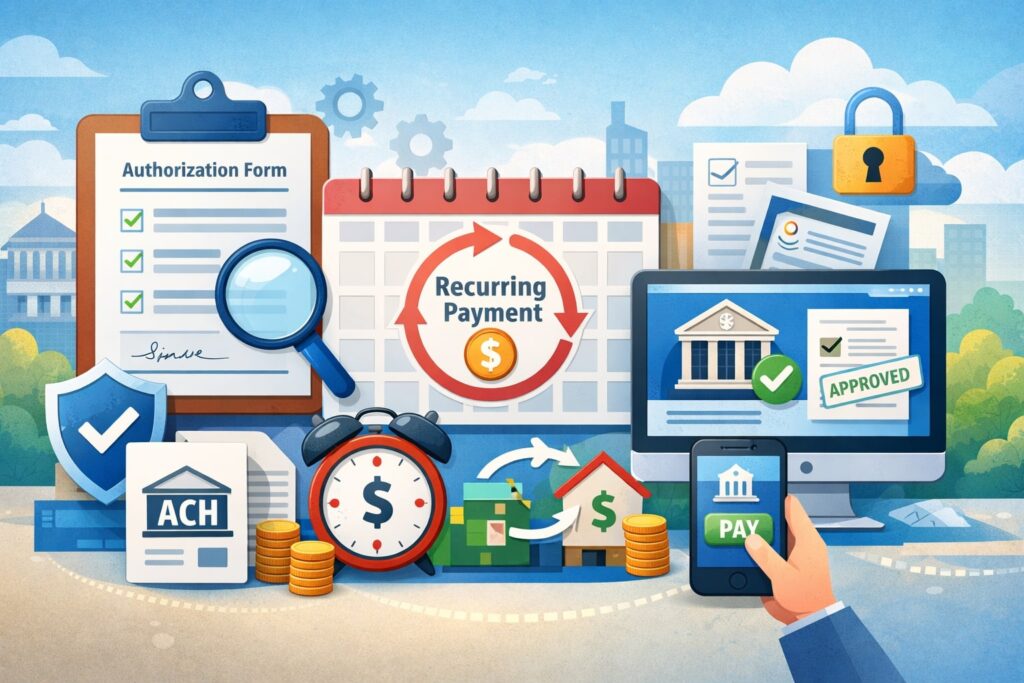
Recurring ACH payments in QuickBooks depend on one non-negotiable requirement: authorization. Bank transfers aren’t like card-on-file where customers expect random charges. For ACH, you need clear permission that matches your billing model.
If you’re sending recurring invoices and the customer manually pays each one, authorization is usually covered by the customer initiating the payment each time.
But if you’re doing true autopay, you need a signed or otherwise provable authorization that includes key details: account holder name, bank account info (or a secure tokenized method via a payment form), payment schedule, amount (or how amounts are determined), and how the customer can revoke authorization.
QuickBooks support content and community guidance repeatedly references the need for an ACH authorization form for customer bank transfers.
Operationally, your best practice is:
- Store authorization records securely (and limit who can access them).
- Make cancellation rules simple and written (“cancel at least X business days before the next draft”).
- Use clear descriptors on invoices and customer emails so payments aren’t mistaken as fraud.
Also, design your failure handling plan. ACH returns happen (closed account, insufficient funds, invalid routing, etc.). Your recurring ACH payments in QuickBooks system should specify what happens next: retry schedule, late fee policy, and when service is paused.
The more proactive you are here, the fewer chargebacks, complaints, and revenue surprises you’ll deal with later.
Step 1: Turn On Bank Transfer (ACH) Payments in QuickBooks
To set up recurring ACH payments in QuickBooks, you first need to ensure bank transfer is available as a payment method in your environment.
In most QuickBooks Online setups, that means enabling QuickBooks Payments and confirming “Bank transfer” or “ACH” is switched on for invoices/sales receipts. QuickBooks’ help documentation outlines processing an ACH bank transfer for invoices or sales receipts once ACH is enabled and the customer has provided permission.
Here’s the practical approach:
- Go to your Payments settings (exact menu labels can vary).
- Confirm your Payments account is approved and fully activated.
- Verify ACH/Bank transfer is enabled as an online payment option.
- Send yourself a test invoice to confirm the “Pay Now” flow shows bank transfer.
One important nuance: QuickBooks has also implemented options where customers may still be able to pay by ACH in certain invoice scenarios, sometimes with an added convenience fee.
QuickBooks’ own support article notes that if an invoice has online payment methods turned off, the customer may still pay by ACH bank transfer and may be charged a convenience fee in that flow.
For recurring ACH payments in QuickBooks, you want predictability. So decide early: will you absorb ACH fees, or will you pass any bank-payment convenience fee to customers? If you don’t decide this upfront, you’ll end up with customers paying differently than expected, which complicates your recurring billing strategy and can hurt retention.
Step 2: Choose the Best Recurring ACH Workflow for Your Business Model
This is where most setups go wrong. People try to force recurring ACH payments in QuickBooks into the wrong template type.
Pick one of these two models:
Model A: Recurring Invoices (Customer Pays Each Time)
Use this when:
- The amount changes month-to-month (usage billing, hourly services, variable add-ons).
- You want customers to review charges before paying.
- You’re working with B2B clients who require approvals.
This is “semi-automated.” QuickBooks does the scheduling, but the customer still clicks to pay.
Model B: Autopay / Recurring Charges (Customer Is Charged Automatically)
Use this when:
- The amount is fixed (membership, retainer, subscription).
- You want near-zero collections work.
- Your churn is sensitive to “forgot to pay” events.
This is the closest to “set it and forget it” recurring ACH payments in QuickBooks, but it requires stronger authorization practices and better failure handling.
Also consider how you want QuickBooks to record the transaction:
- Invoice-based: better for AR visibility.
- Sales receipt–based: simpler when payment happens immediately and you don’t want open invoices lingering.
You can absolutely run both models depending on customer type. The key is not mixing them randomly. A clean setup keeps recurring ACH payments in QuickBooks easy to manage, easy to explain, and easy to reconcile.
Step 3: Set Up a Recurring Invoice Template for ACH (QuickBooks Online)
If your goal is recurring ACH payments in QuickBooks via customer-paid invoices, recurring templates are the foundation.
In QuickBooks Online, you’ll typically:
- Create a standard invoice the way you want it to appear (items, description, taxes, terms, memo).
- Make sure online payments are enabled and that bank transfer/ACH is available for the invoice.
- Convert that invoice into a recurring template (scheduled).
- Choose a schedule (monthly, weekly, yearly), start date, end date (optional), and who receives it.
- Add email message text that clearly instructs the customer to pay by bank transfer.
When this is set correctly, QuickBooks automatically generates the invoice on schedule and sends it. The customer clicks “Pay Now,” chooses bank transfer, and completes the authorization/payment flow.
QuickBooks documentation confirms ACH bank transfers can be processed for invoices/sales receipts when enabled and authorized.
To keep recurring ACH payments in QuickBooks consistent, include:
- A short billing description (“Monthly service – December 2025”)
- A reminder of due date and late policy
- A support contact for payment failures
This method is especially SEO- and operations-friendly because it scales. You can manage dozens or hundreds of recurring customers with minimal manual invoicing. The tradeoff is that payment is still customer-triggered, so you may see occasional late pays unless you add reminders and follow-up automation.
Step 4: Set Up Recurring ACH Charges (Autopay) Through QuickBooks Payments Tools
If you want true recurring ACH payments in QuickBooks that draft automatically, you’re looking for recurring payment tools in the QuickBooks Payments ecosystem rather than only recurring invoices.
QuickBooks provides support resources for recurring payments and merchant-services workflows.
The general process looks like this:
- Ensure QuickBooks Payments is active.
- Create or access a recurring payment setup area (often within merchant services/payment settings).
- Select the customer and choose ACH/bank account as the payment method.
- Capture and store authorization properly (signed authorization is commonly referenced in QuickBooks-related recurring payment guidance).
- Configure schedule, amount, start date, and optional end date.
- Decide whether the customer receives payment notifications and receipts.
Autopay is powerful, but it’s also where you need the most discipline. A small error (wrong amount, wrong start date, wrong customer) repeats automatically. For recurring ACH payments in QuickBooks, build internal checks:
- Require a second person to review new autopay schedules above a threshold.
- Use a “first draft” confirmation email to customers.
- Track failed drafts daily.
Also, communicate clearly to customers about when the draft happens (e.g., “1st of every month”) and when it will appear on bank statements. Less confusion means fewer disputes, fewer returns, and fewer support tickets.
Step 5: Manage Fees and Customer Experience (Including ACH Convenience Fees)
Fees influence adoption. If your customers feel surprised by a bank-payment fee, your recurring ACH payments in QuickBooks program can backfire.
QuickBooks documentation describes scenarios where customers can pay by ACH bank transfer and may be charged a convenience fee. This is important because customers often assume bank transfer is “free.”
On the merchant side, QuickBooks community/FAQ-style support content commonly references ACH processing fees (for example, many accounts see 1% with a max cap), and there are also discussions about fee structure changes for newer accounts.
The exact fee you see can depend on your account setup timing and plan details, so treat the fee displayed in your QuickBooks Payments settings as the final authority.
Best practices to keep recurring ACH payments in QuickBooks customer-friendly:
- Put a one-sentence fee policy on invoices (“Bank transfer may include a processing fee depending on payment method selection.”)
- Offer ACH as the preferred method when it’s cost-effective, but keep card available for customers who need it.
- Use consistent invoice language across all recurring templates.
- If you pass fees to customers, give them an easy “switch payment method” path.
From an operations standpoint, fees also affect reconciliation. If fees are netted out or billed separately, you want your books to reflect the right gross and fee amounts. The more consistent your approach, the easier monthly close becomes.
Step 6: Reconciliation and Accounting Workflow for Recurring ACH Payments in QuickBooks
Recurring ACH payments in QuickBooks aren’t “set and forget” unless the accounting side is clean. The goal is to avoid mismatches between deposits, invoices, and fees.
A solid workflow looks like this:
- Invoices/Sales Receipts are created by recurring templates or autopay tools.
- The customer pays by ACH.
- QuickBooks records the payment and creates the related deposit activity.
- Your Banking feed imports the deposit.
- You match the feed deposit to the recorded payment/deposit.
QuickBooks’ ACH processing guidance focuses on correctly processing ACH payments for invoices/sales receipts and having customer permission in place. In day-to-day practice, your main work becomes exception handling:
- Deposits that don’t match (often timing)
- Returned ACH payments
- Partial payments (rare but possible)
- Fee lines that confuse matching
To keep recurring ACH payments in QuickBooks reconciliation easy:
- Use consistent amounts and naming on recurring invoices (“Monthly Hosting – Plan A”).
- Avoid changing item names midstream; it breaks pattern recognition.
- Reconcile on a predictable schedule (daily for high volume, weekly for low volume).
- Keep a simple tracking note in customer records about draft date and billing terms.
If you handle many recurring customers, consider using tags, custom fields, or customer types to segment autopay vs invoice-pay customers. That way, when an ACH return happens, your team can quickly identify which remediation process applies.
Step 7: Troubleshooting Common Problems with Recurring ACH Payments in QuickBooks
Even a well-built setup will hit occasional issues. The difference between a fragile system and a durable system is how quickly you can diagnose and fix problems.
ACH Option Not Showing on Invoices
This usually happens when payments aren’t fully enabled, the account is not approved, or invoice payment settings aren’t toggled. Start by confirming ACH/bank transfer is enabled in Payments settings, then test with a new invoice. QuickBooks support materials indicate ACH is available when configured and authorized.
Customers Complain About a Bank Payment Fee
Some customers encounter a convenience fee in the ACH flow depending on how the invoice payment methods are configured. QuickBooks documents that customers may pay by ACH and be charged a convenience fee in certain cases. Solution: update invoice settings and add clear language before rollout.
Payments Fail or Return
ACH returns are part of the system. Your response plan should include:
- notification to customer
- retry rules
- alternate payment method option
- service pause rules (if appropriate)
Duplicate Charges
Duplicates usually come from having both a recurring invoice schedule and an autopay schedule active for the same customer. Fix by standardizing your billing model per customer and auditing recurring templates monthly.
Reconciliation Doesn’t Match
Timing is the most common cause. ACH settles on bank schedules, and deposits may batch. Matching becomes easier when your recurring ACH payments in QuickBooks are consistent in amount, date, and customer labeling.
Security and Risk Controls for Recurring ACH Payments
Recurring ACH payments in QuickBooks reduce manual work, but they increase the importance of security controls. If you’re storing any bank authorization details, treat them as sensitive financial data.
Start with role-based access:
- Limit who can change payment settings.
- Limit who can edit recurring templates.
- Limit who can issue refunds or void payments.
Next, strengthen customer verification. For higher-ticket recurring ACH payments in QuickBooks, confirm identity and business legitimacy before enabling autopay. This reduces fraud risk and ACH returns.
Also, create an audit habit:
- Monthly review of recurring templates
- Spot-check a sample of customers (amount, date, authorization)
- Review failed/returned ACH trends
And don’t ignore customer communications. A short email before the first draft (“Your first bank draft will occur on January 1”) prevents confusion and reduces bank disputes.
A durable recurring ACH payment in QuickBooks setup is not just “configured”—it’s governed. The best teams treat recurring billing like a mini product: clear policies, clear ownership, and consistent monitoring.
Best Practices to Optimize Recurring ACH Payments for Cash Flow
Once recurring ACH payments in QuickBooks are live, optimization is where you get the real payoff. Small improvements compound month after month.
Start with billing dates. If many customers pay on the 1st, you’ll see a predictable spike—but also more bank congestion and potential returns if customers haven’t funded their accounts. Consider segmenting billing dates (1st, 10th, 20th) to spread risk and stabilize deposits.
Next, tighten messaging:
- Put “bank transfer” language in the subject line of recurring invoices.
- Use a 2–3 sentence payment instruction block.
- Add a short “update bank account” note if customers need to change details.
Improve retention by reducing friction. If an ACH payment fails, give customers a simple way to pay by card temporarily while updating bank info. A flexible fallback prevents cancellations.
Monitor performance metrics:
- ACH success rate
- return rate
- average days-to-pay (for invoice-pay model)
- customer support tickets related to payments
Finally, document your internal SOP. When recurring ACH payments in QuickBooks are run by a team (not just one person), clear SOPs prevent chaos when someone is out of office or when you onboard new staff.
Future Predictions: Where Recurring ACH and QuickBooks Billing Are Headed
Recurring ACH payments in QuickBooks will likely keep expanding in capability, mainly driven by customer demand for faster settlement, more transparent fees, and better automation.
Here’s what’s most likely over the next few years:
Faster Bank Payments and “Instant-Like” Expectations
Even when ACH remains the backend rail, customers increasingly expect faster confirmation and more real-time status. Payment platforms are moving toward richer status notifications, better risk scoring, and faster funding options. That means recurring ACH payments in QuickBooks may become more “card-like” in the user experience.
More Fee Experimentation and Configurable Surcharging
QuickBooks has already introduced customer-facing convenience fee behavior in some ACH invoice scenarios. Expect more toggles and pricing experiments—especially as payment companies compete on margins and feature sets. Businesses will need to review fee settings at least quarterly, not once a year.
Smarter Automation: Failed Payment Recovery and Dunning
Recurring billing tools across the market are improving automated retries (“smart retries”), reminder schedules, and self-serve payment method updates. Recurring ACH payments in QuickBooks may continue to add automation that reduces churn without needing staff follow-up.
Deeper Compliance UX
Because authorization matters so much for recurring bank drafts, platforms are likely to provide more built-in authorization capture, storage, and audit logs. The businesses that win will be the ones that treat compliance as part of customer experience, not a paperwork burden.
The practical takeaway: build your recurring ACH payments in QuickBooks system so it can adapt—clear customer agreements, clean templates, and a review process for settings and fees.
FAQs
Q1) Can I set up recurring ACH payments in QuickBooks without QuickBooks Payments?
Answer: Usually, accepting ACH directly on QuickBooks invoices/sales receipts requires QuickBooks Payments or an integrated payments option that supports bank transfer.
QuickBooks’ guidance on processing ACH inside QuickBooks assumes ACH is enabled and permission is obtained. If you don’t use QuickBooks Payments, you may need a separate invoicing/payments workflow and then record payments manually, which reduces automation.
Q2) What’s the difference between recurring invoices and recurring ACH charges?
Answer: Recurring invoices automatically send an invoice on a schedule, but the customer still initiates payment (they can choose ACH when paying). Recurring ACH charges (autopay) draft the customer’s bank account automatically based on their authorization. If you want “hands-off” recurring ACH payments in QuickBooks, autopay is typically the closer match.
Q3) Do customers need to sign an ACH authorization form?
Answer: For autopay recurring ACH payments in QuickBooks, you should have provable authorization. QuickBooks-related support/community guidance commonly points to using an authorization form for ACH/eCheck and recurring payments. If customers pay each invoice manually, the authorization is generally tied to that payment action.
Q4) Why are some customers seeing a convenience fee when paying by ACH?
Answer: QuickBooks documentation describes a scenario where customers can still pay an invoice using ACH bank transfer even when other online payment methods are off, and that flow may include a convenience fee. The fix is to review your invoice payment settings and your policy on who pays which fees.
Q5) How do I track recurring ACH payments in QuickBooks so reconciliation is easy?
Answer: Use consistent recurring templates, keep amounts predictable where possible, and reconcile deposits regularly. When ACH is processed through QuickBooks for invoices/sales receipts, the platform can help record payments and match deposits—assuming the bank account mapping is correct. Consistency is what makes matching fast.
Q6) Are ACH fees always capped?
Answer: Not necessarily. Many QuickBooks support/community answers reference a 1% ACH fee with a maximum cap, but there are also discussions about fee structure changes for newer accounts and different setups. Your best source is your live Payments pricing screen and any plan terms tied to your account.
Conclusion
Recurring ACH payments in QuickBooks can transform your billing from a manual, error-prone task into an automated system that improves cash flow, reduces late payments, and makes your books easier to close every month.
The key is choosing the right model: recurring invoices when customers should approve each bill, and autopay recurring charges when you want true subscription-like automation.
To get recurring ACH payments in QuickBooks right, focus on five pillars: enable ACH correctly, capture proper authorization, use consistent recurring templates, manage fees transparently, and maintain a tight reconciliation workflow. When you combine those, you get a setup that scales without creating a support nightmare.
Looking ahead, bank payments are trending toward faster status updates, better automation around failed payments, and more flexible fee handling—so building a clean, well-documented recurring ACH payments in QuickBooks process today will make it easier to adapt tomorrow.
Leave a Reply